
Selection
Making selections is one of the primary ways of exploring data in Rerun. The current selection can be changed with a mouse click on most elements of the Viewer — including the Blueprint, Viewport, Timeline and even the Selection view itself.
Parts of the Selection view
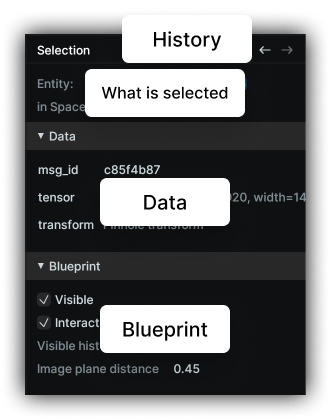
Selection history
Rerun keeps a log of all your selections, allowing you to undo/redo previous selections with the ←/→ buttons at the top of the view.
Right clicking on the buttons expands the full history
What is selected
Here you find what is selected and for some objects in which context. This context not only gives you a convenient way to jump to related objects, but is also important for what the following sections are showing.
Data & blueprint sections
The data section always shows static, raw user logged data for the currently selected time. Some objects, e.g. Views, may not have a data section and expose only Blueprint options.
In contrast, the Blueprint section is timeline independent and exposes the Blueprint settings of an entity in the context of a given View. To learn more about the various settings check the on-hover tooltips.
Click-through selections
Making selections can be context sensitive to the current selection. The most common case for this is selecting instances of an entity (see also Batch Data): E.g. in order to select a point of a point cloud in a View, first select the entire entity (the cloud) by clicking on one of the points. Once the cloud is selected, you can further refine that selection by clicking on an individual point.
Multi Selection
By holding cmd/ctrl upon click, you can add or remove selections from the set of currently selected objects.
The selection view shows all selected objects in the order they were added.
Linking views
Hovering and selection are shared by all views. When you hover or select an entity, or one instance of it (for example one point of a point cloud), it is highlighted in every view that shows the same entity path and instance.
This only links the same entity path.
Different entities are not linked, even if they describe the same object, for example /camera/image and /world/points.
To link them, give the related data the same entity path, or build your own linking with callbacks.
Time is also shared: all views show the same time cursor. Right-click in a time series view to move the time cursor to that time. To pan and zoom the time axis of several plots together, see linked time axes.